

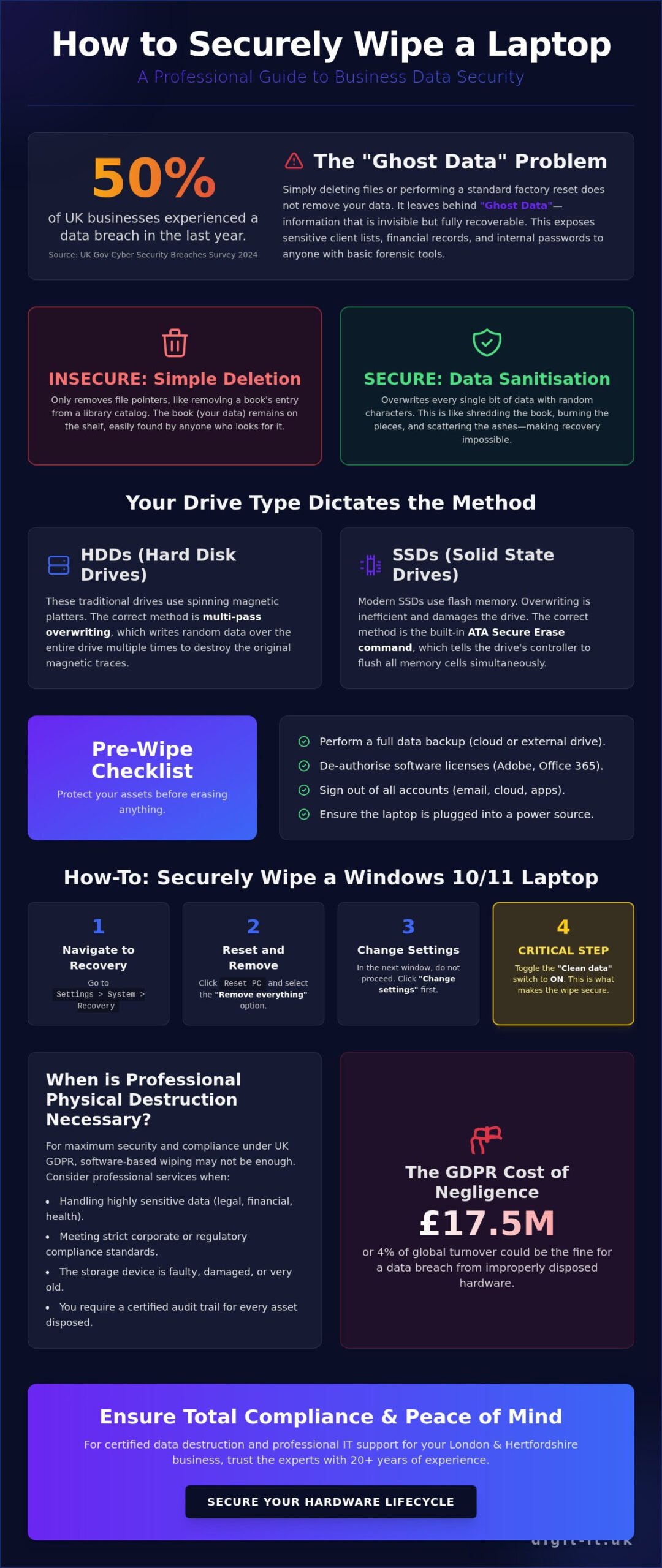
What if the laptop you just sold or recycled still contains your company’s entire 2025 client list? Most business owners in London and Hertfordshire mistakenly believe that a quick factory reset is enough to protect their reputation. You know that data breaches aren’t just an IT headache; they’re a direct threat to your business resilience and GDPR standing. It’s natural to feel anxious about whether your sensitive information is truly gone or just hidden from view. According to the UK Government’s Cyber Security Breaches Survey 2024, 50% of businesses have experienced a breach in the last year, making a proactive approach to hardware disposal essential.
This guide will teach you exactly how to wipe a laptop to a professional standard, ensuring that every byte of data is unrecoverable. We’ve optimised the process for both Windows and Mac environments so you can secure your hardware without spending hours on research. You’ll discover the specific tools we use to achieve total peace of mind and learn how to document the process for your compliance records. From identifying the right software to verifying the final result, we’re providing the roadmap to future-proof your data disposal strategy and ensure a seamless transition for your team.
Key Takeaways
- Move beyond simple file deletion to understand the technical nuances of data sanitisation and prevent “ghost data” from compromising your business security.
- Navigate the specific erase procedures for modern Windows 11 and Apple Silicon systems to ensure every byte of sensitive information is permanently removed.
- Master how to wipe a laptop securely using our step-by-step guide, including the critical pre-wipe checklist for backing up data and de-authorising software.
- Future-proof your hardware lifecycle by identifying when professional-grade physical destruction is necessary to meet strict UK GDPR and corporate liability standards.
- Optimise your device decommissioning process with a strategy that balances internal efficiency with the peace of mind provided by certified data destruction.
Why Deleting Files Isn’t Enough: Understanding Data Sanitisation in 2026
Many business owners in London and Hertfordshire mistakenly believe that hitting the delete key or performing a factory reset is sufficient when retiring old hardware. This misconception creates a significant security gap. When you delete a file, the operating system simply marks that space as available for new data. The original information remains on the drive, invisible but fully intact, until it’s eventually overwritten. This “ghost data” is a goldmine for cybercriminals using basic forensic tools to recover sensitive client lists, financial records, or internal passwords.
Understanding the technical distinction between common methods is vital for your firm’s resilience. Deleting only removes the file pointer. Formatting a drive recreates the file system but often leaves the underlying data blocks untouched. A true secure wipe, however, replaces every single bit of data with random characters or zeros. If you’re looking for how to wipe a laptop effectively, you must move beyond these surface-level actions to ensure total data destruction.
The HDD vs. SSD Distinction
The hardware inside your laptop dictates the erasure strategy. Traditional Hard Disk Drives (HDDs) store data magnetically on spinning platters, where multiple passes of overwriting are effective. Modern Solid State Drives (SSDs) function differently. They use wear leveling to distribute data across cells, meaning traditional overwriting can miss large pockets of information and unnecessarily degrade the drive’s lifespan. To address this, Understanding Data Sanitisation requires using built-in “Secure Erase” commands that trigger the drive controller to flush all storage cells simultaneously. Data Sanitisation is the process of making data unrecoverable by any known forensic technique.
The Legal Cost of a Poorly Wiped Laptop
For companies operating in Buckinghamshire and the capital, the risks of a data leak extend far beyond reputation. Under UK GDPR, the Information Commissioner’s Office (ICO) can levy fines of up to £17.5 million or 4% of total annual global turnover for negligent data handling. A laptop lost or sold on the second-hand market with recoverable data is a direct violation of these regulations. It’s no longer enough to simply perform the task; you must maintain a verifiable audit trail that proves when and how to wipe a laptop was completed for every device in your fleet. This level of proactive management is a core pillar of Cyber Security for Small Business UK: The 2026 SME Defence Guide, ensuring your business remains compliant while protecting its intellectual property during every hardware refresh cycle.
How to Wipe a Windows Laptop: Step-by-Step for Windows 10 and 11
For modern business environments in London and Hertfordshire, the process of decommissioning hardware requires more than a simple file deletion. Windows 10 and 11 offer built-in tools that, when configured correctly, provide a high level of data security. Understanding how to wipe a laptop using these native features allows your team to maintain operational agility without compromising sensitive corporate intelligence.
Using the “Reset this PC” Feature
The “Reset this PC” function is the primary method for sanitising modern Windows devices. To begin, navigate to Settings > System > Recovery. When you click “Reset PC,” you’ll face your first major decision. Always select “Remove everything”. Choosing the “Keep my files” option is insufficient for security purposes as it leaves user data fragments and configuration settings intact.
Once you’ve selected “Remove everything,” Windows presents a “Current settings” summary. Don’t click next yet. You must select “Change settings” and toggle the “Clean data” switch to On. This step is vital. While a standard reset just marks the space as available, the “Clean data” option performs a full overwrite. This process takes longer, sometimes several hours depending on the drive size, but it’s the only way to ensure the data isn’t easily recoverable by standard forensic tools.
You’ll also need to choose between “Cloud download” and “Local reinstall.” We recommend the Cloud option for most UK businesses. If your office has a stable 50 Mbps+ connection, this pulls a fresh, uncorrupted version of Windows directly from Microsoft’s servers. This ensures that any deep-seated malware or system corruption isn’t carried over into the new installation.
Advanced Wiping for Older Windows Machines
If your fleet includes legacy hardware, the strategy shifts. For older laptops equipped with traditional Hard Disk Drives (HDDs), you might consider third-party tools like DBAN. However, use caution. These tools are designed for spinning platters and can actually damage the modern NVMe or SSD drives found in 95% of laptops sold after 2020. Overwriting an SSD too many times reduces its lifespan and may not even reach all data blocks due to “wear leveling” technology.
For modern SSDs, the most effective method is “cryptographic erasure.” By enabling BitLocker encryption on the drive before you start the reset process, you ensure that the data is already scrambled. When the reset occurs and the encryption key is destroyed, the remaining data becomes mathematically impossible to recover. This approach aligns with the NIST guidelines for media sanitization, which provide the gold standard for data destruction in professional environments.
If your device has multiple partitions, such as a D: or E: drive used for local backups, ensure the reset settings are applied to “All drives.” Overlooking a secondary partition is a common oversight that can leave your business vulnerable to data leaks. If you’re managing a large-scale hardware refresh, our team can help you optimise your IT infrastructure to ensure every device is retired securely and sustainably.
Wiping Your MacBook: Secure Data Removal for Apple Devices
Apple’s approach to hardware security has evolved rapidly since the introduction of the T2 Security Chip in 2018. For London businesses managing modern fleets, understanding how to wipe a laptop now involves cryptographic erasure rather than simple data overwriting. On Apple Silicon (M1, M2, and M3) devices, data is always encrypted at rest. When you initiate a secure wipe, the system destroys the encryption keys stored within the Secure Enclave. This process makes the underlying data instantly unrecoverable, providing a level of digital resilience that older methods couldn’t match.
Before you begin any reset, you must address the ecosystem links. A device still tied to an Apple ID or “Find My” network remains a liability. If Activation Lock stays active, the hardware becomes unusable for the next employee or buyer. We recommend a proactive audit of your iCloud dashboard to ensure the serial number is removed from your corporate asset list before the physical device leaves your premises. This step is vital for maintaining a seamless transition during hardware refreshes.
Using Erase All Content and Settings
For Macs running macOS Ventura or Sonoma, the “Erase Assistant” is the modern benchmark for security. You can access this by navigating to System Settings, selecting General, and clicking Transfer or Reset. This tool mirrors the seamless reset experience of iOS. It’s the gold standard for Apple resale because it handles multiple tasks simultaneously; it signs out of all Apple services, removes Touch ID data, and clears the cryptographic keys. This ensures your business remains compliant with data protection standards without requiring hours of manual configuration.
The Recovery Mode Method for Older Macs
If your team still utilises Intel-based Macs from before 2018, you’ll need a more traditional approach. First, sign out of iMessage and Music manually to de-authorise the hardware. Boot the device into Recovery Mode by holding Command + R during the startup sequence. Inside Disk Utility, you must select the internal drive and choose the “Erase” option. For any Mac using an SSD and running macOS 10.13 or later, select the APFS format. For older legacy machines with mechanical hard drives, stick with Mac OS Extended (Journaled). Learning how to wipe a laptop using this manual method is essential for maintaining your older infrastructure until it’s ready for a modern upgrade through our managed infrastructure services. This methodical approach ensures no legacy data remains on-site, protecting your firm from potential breaches.
Pre-Wipe Checklist: Protecting Your Business Assets
Execution is only one part of the process. Before you initiate the final command for how to wipe a laptop, you’ve got to ensure your operational intelligence remains intact. A single oversight during this phase can lead to permanent data loss or licensing complications that stall your team’s productivity. In 2025, research indicated that 31% of UK SMEs experienced data gaps during hardware refresh cycles due to unverified backups. Preparation isn’t just a safety measure; it’s a core component of your business continuity plan and overall operational resilience strategy.
Backing Up Critical Files
You should never start the wiping process until a verified secondary backup is live and accessible. It’s not enough to simply copy files to a drive. You must test the integrity of that data to ensure it opens correctly on a different machine. For many London businesses, a hybrid approach works best. We recommend using encrypted cloud storage like Azure or Google Drive for immediate accessibility, combined with a physical encrypted NAS for high-volume local recovery.
For a deeper dive into resilient storage methods, see our guide on Data Backup and Recovery for SMEs in London & Hertfordshire: The 2026 Guide. This ensures your transition between old and new hardware remains seamless.
Account Disconnection and Security
Hardware is only “clean” once software ties are severed. If you leave a device registered in your management console, it remains a potential entry point for security risks. Take these specific steps before you learn how to wipe a laptop effectively:
- De-authorise Software: Sign out of Adobe Creative Cloud, Microsoft 365, and specialised industry tools. Many licenses are tied to specific hardware IDs; failing to de-authorise can prevent you from activating the software on a replacement machine.
- Remove MDM Profiles: Detach the device from Microsoft Intune or Google Workspace MDM. This releases the hardware from your corporate policy control.
- BIOS/UEFI Passwords: Clear any administrative passwords set at the firmware level. If these remain, the next user won’t be able to adjust boot settings or perform future maintenance.
Physical Assets and Documentation
Check the chassis for physical peripherals. It’s easy to overlook a tiny Logitech dongle or a 1TB SD card tucked into a side slot. These small components often contain sensitive cached data. Finally, record the serial number and MAC address for your internal asset register. Maintaining an accurate log of decommissioned gear is a requirement for Cyber Essentials certification, which 52% of Hertfordshire businesses now prioritise to secure local government contracts. This documentation proves the device has been handled responsibly and removed from your active risk perimeter.
To ensure your fleet decommissioning meets the highest security standards, explore our managed IT infrastructure support for professional asset management.
Professional Data Destruction for London & Hertfordshire Businesses
Understanding how to wipe a laptop using standard software is a vital skill for personal use, yet it often falls short of the rigorous compliance standards required for UK corporate liability. In 2026, the risk of data remnants surviving a basic reset is too high for firms in London and Hertfordshire to ignore. Professional data destruction goes beyond simple deletion; it involves multi-pass overwriting or physical shredding to ensure that sensitive client information is permanently erased. This proactive approach protects your business from the severe financial penalties associated with data breaches under current UK regulations.
Digit-IT provides a seamless solution for hardware decommissioning. We don’t just clear drives; we provide a full audit trail. Every device processed by our team comes with a formal Certificate of Destruction. This document is essential for your compliance records, proving to auditors and stakeholders that you’ve handled end-of-life hardware with total integrity. Whether you’re based in Watford, St Albans, or across Greater London, our team ensures your transition to new hardware is secure and documented.
- Overwriting: We use NIST-compliant algorithms that replace your data with random patterns, making recovery impossible even for specialist forensic labs.
- Physical Shredding: For high-security drives, we offer physical destruction where hardware is reduced to 2mm fragments.
- Regulatory Compliance: Our processes align with the latest UK data protection standards, ensuring your business remains on the right side of the law.
Managed IT Support and Lifecycle Management
Our Managed IT Services include secure offboarding as a standard feature. We believe that technology is only as effective as the strategy behind it. When your business undergoes a bulk hardware refresh, our outsourced IT department manages the entire lifecycle. This prevents the common bottleneck of old laptops sitting in a cupboard, which is a major security vulnerability. Local Buckinghamshire businesses trust us to maintain their digital resilience by ensuring that no data leaves the premises in a readable format. A robust business continuity plan checklist for Hertfordshire and London SMEs should include secure hardware decommissioning as a critical component to minimise operational disruption.
Requesting a Security Audit
The best way to protect your infrastructure is to identify vulnerabilities before they become crises. We offer comprehensive hardware health and security checks to evaluate your current fleet. If you’re ready to upgrade or simply need to decommission legacy kit, our experts provide 24/7 technical support to guide you through the process. We act as an extension of your internal team, looking over the horizon to mitigate future risks. Secure your business data with Digit-IT today to ensure your firm remains protected, compliant, and ready for growth.
Future-Proof Your Data Protection Strategy
Protecting your company’s intellectual property requires more than a simple factory reset. You’ve learned that standard file deletion leaves traces that modern recovery tools can exploit. Mastering how to wipe a laptop effectively means following a rigorous sanitisation protocol that aligns with UK GDPR standards to prevent costly data breaches. Whether you manage a fleet of Windows devices in Hertfordshire or MacBooks in Greater London, your hardware retirement process must be proactive and airtight.
At Digit-IT, we bring over 20 years of experience in managed IT support to help you navigate these technical complexities. We act as your strategic partner, ensuring that every piece of retired hardware is handled with the precision required for total peace of mind. Our local experts across Hertfordshire, Greater London, and Buckinghamshire provide the resilience your infrastructure needs to thrive in an evolving threat landscape. Ensure your business data is 100% secure; contact Digit-IT for expert hardware support in London and Hertfordshire.
Take control of your digital footprint today and turn your IT lifecycle management into a competitive advantage for your business.
Frequently Asked Questions
Does a factory reset delete everything on a laptop?
A standard factory reset doesn’t always delete every piece of data because it often only removes the file paths rather than overwriting the actual information. For businesses in London seeking true security, you must select the “Clean the drive fully” option during the process. This ensures that sensitive files are overwritten, preventing recovery through standard forensic software used by cybercriminals.
How long does it take to completely wipe a laptop?
It typically takes between 1 and 5 hours to securely wipe a laptop, depending on the drive’s total capacity and the sanitisation method you choose. A 500GB Solid State Drive (SSD) might finish in under 60 minutes using modern cryptographic erasure. However, a 1TB mechanical hard drive requiring a three-pass overwrite to meet UK security standards will often take the full 5 hours to complete.
Can deleted files be recovered after a Windows reset?
Deleted files can be recovered after a Windows reset if the “Quick” reset option was used instead of a full data erasure. Data recovery specialists in Hertfordshire frequently retrieve files from drives where the sectors weren’t physically overwritten. To ensure your business continuity isn’t compromised, you’ll need to use a tool that writes zero-data across the entire disk surface to make recovery impossible.
Is it safe to sell my laptop after a software wipe?
Selling your laptop is only safe if you’ve performed a verified sanitisation that meets GDPR Article 32 requirements. A simple software reset leaves a digital footprint that could lead to a data breach, which carries potential UK fines of up to £17.5 million. We always recommend obtaining a digital certificate of destruction from a professional tool before handing hardware to a third party.
What is the difference between a quick format and a full wipe?
A quick format only rebuilds the file system index, while a full wipe overwrites every individual bit of data on the storage media. Understanding how to wipe a laptop correctly involves choosing the full wipe to ensure long-term digital resilience. While a quick format takes less than 30 seconds, it’s a dangerous shortcut that leaves 100% of your actual data vulnerable to basic recovery tools.
Do I need to wipe my laptop if it is broken and won’t turn on?
You must still wipe or physically destroy the drive even if the laptop doesn’t power on, as your data remains perfectly intact on the internal storage. If the device is non-functional, the safest route for a London business is to remove the drive and use a 2mm professional shredding service. This physical destruction ensures that proprietary information doesn’t leak from discarded hardware sitting in a recycling centre.
What should I do if my laptop has a mechanical hard drive (HDD)?
Mechanical hard drives require a more rigorous overwriting process than SSDs because they store data using magnetic patterns. You should use a multi-pass sanitisation method, such as the 3-pass British HMG IS5 standard, to ensure the magnetic traces are fully scrambled. This is a critical step in how to wipe a laptop if your Hertfordshire firm still utilises older hardware for archival storage or legacy tasks.
Can I wipe a laptop remotely if it is lost or stolen?
You can wipe a laptop remotely if the device was previously enrolled in a Mobile Device Management (MDM) system like Microsoft Intune. The “Remote Wipe” command triggers as soon as the stolen laptop connects to Wi-Fi or a cellular network. This proactive strategy successfully protects corporate data on 95% of lost devices, providing immediate peace of mind for your IT department and stakeholders.

